To rehire a dismissed employee:
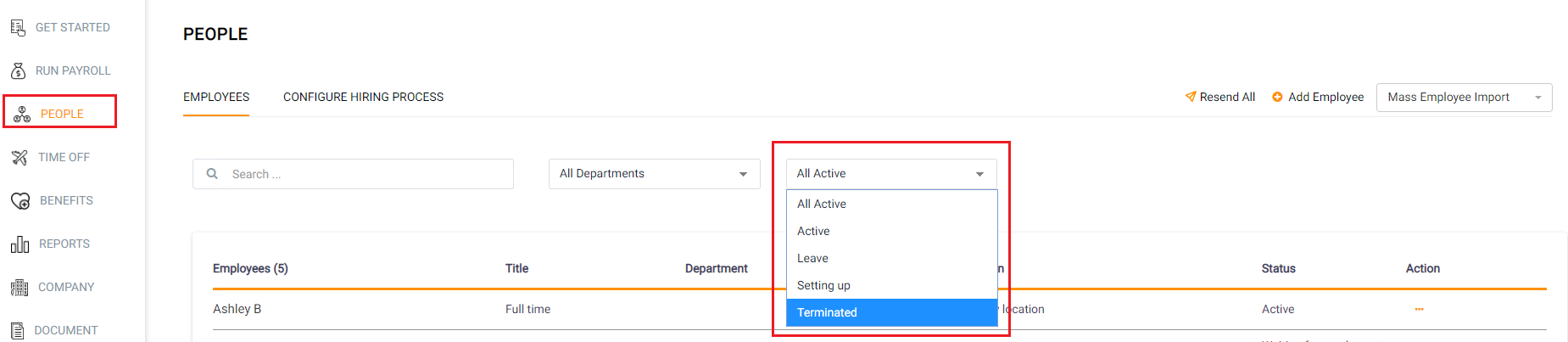
- Click on the People tab
- Click on the Employees tab along the top
- Use the second drop-down list "All Active" next to the search bar in the middle of the page, and select Terminated
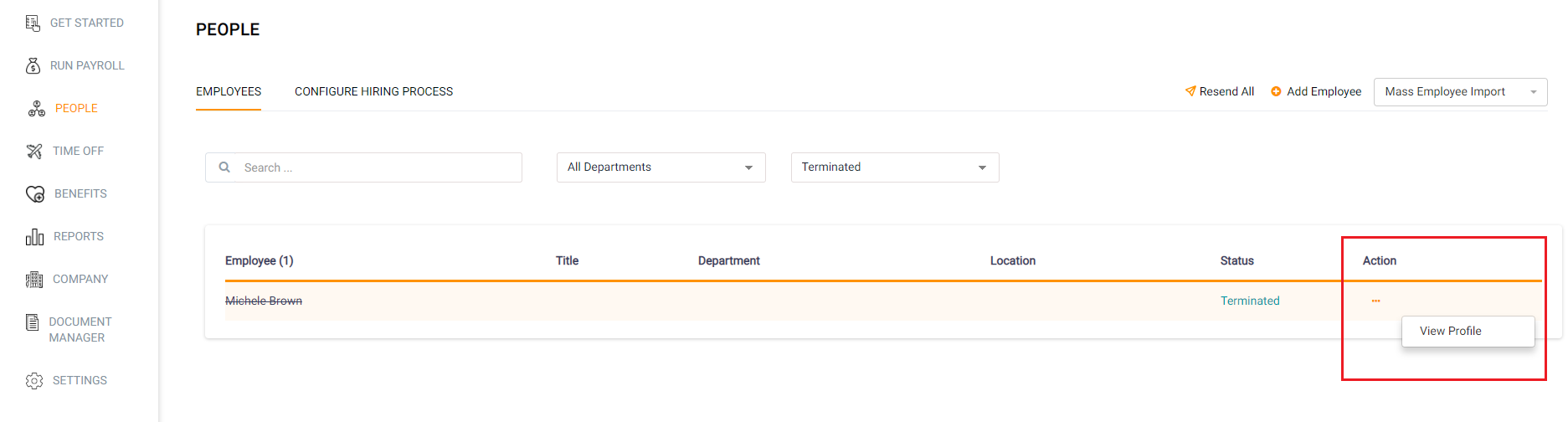
- On the far right-hand side under Action, click on the orange action dots of the terminated employee you would like to rehire and select View Profile to open the employee's profile.
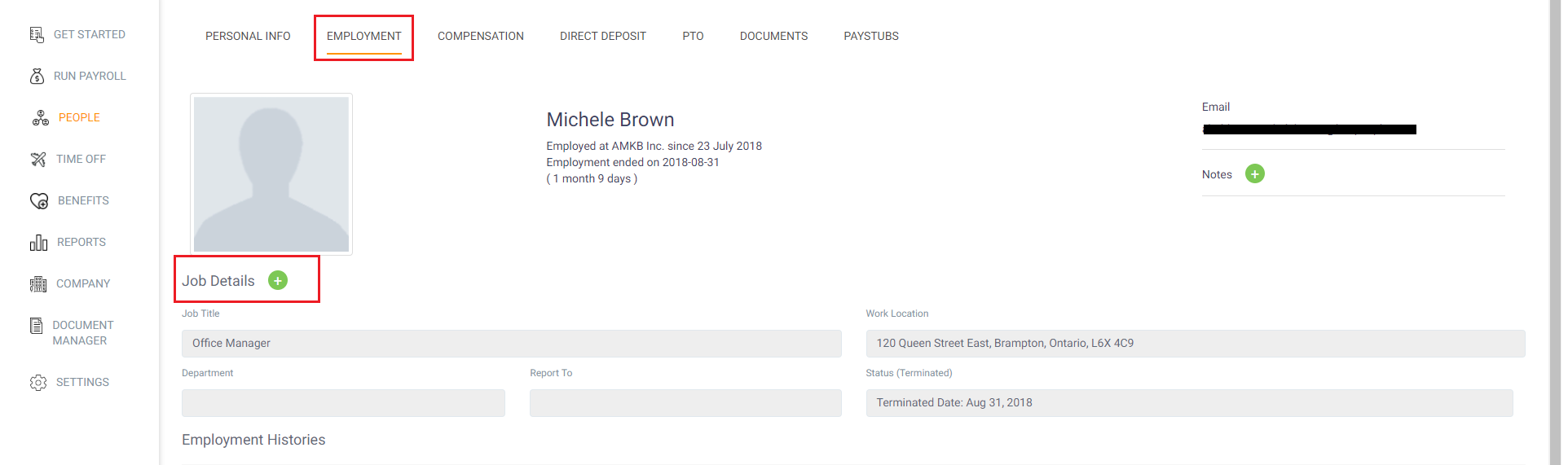
- Once you have opened the employee's profile, Click on the Employment tab
- Click on the green plus sign next to Job Details
- A display box will open allowing you to enter Employee information including their new Start Date
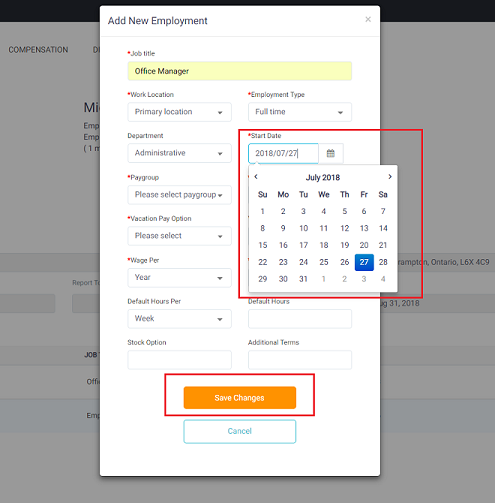
- Select Save Changes
- Now the dismissed employee will appear as an active employee
- You may want to reconfirm information such as banking information, home address and other details that may have changed
Note:
If Auto-Run is enabled, the system may not allow manual employee additions, particularly for rehires. If you encounter this issue, please disable Auto-Run first. Once Auto-Run is turned off, you should be able to successfully re-add the employee(s). You may re-enable Auto-Run after the employee has been reactivated.